Step 1: Read&Write is available for Windows, Mac, Google Chrome, Microsoft Edge, iPad and Android. To download for free, visit the Texthelp website, scroll down, and then select your preferred platform.
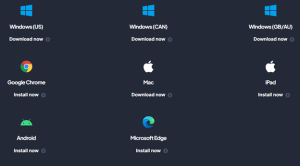
Step 2: Click Download now and wait for the file to download.
Step 3: Double click on the downloaded file and follow the install instructions.
Step 4: Once Read&Write is installed, a shortcut to the software will appear on your desktop. Open Read&Write and a small menu will appear at the top of the screen.
Step 5: Click on the Read&Write Logo (puzzle piece shape).

Step 6: Click on “Sign in with Microsoft”. Use your Brandon University email credentials to have full access to all the program features. This is the only time you will be required to login.

Step 7: You will be redirected to BU’s login page and prompted to enter your details again.

At this point setup should be complete, and you will be able to access the Read&Write toolbar!
OrbitNote is a PDF tool that makes it easy to read, edit, and interact with digital documents. You can highlight, type notes, add comments, draw, and even use voice notes directly on your PDFs.
Step 1: To access OrbitNote, go to orbit.texthelp.com
Step 2: Click on “Sign in with Microsoft”. Use your Brandon University email credentials to have full access to all the program features.

Step 3: Once signed in, you will be brought to the OrbitNote dashboard.

Step 4: On the OrbitNote dashboard you will have the option to Open a PDF from your local system, from Google Drive, or from OneDrive.
Step 5: Add the OrbitNote extension for additional functionality. To install the extension, visit the Chrome webstore and select “Add to Chrome”
